Bringing the Modern Dev Experience to EPM Calculation Manager
Why I built EPM Workbench for VS Code—and how it brings IntelliSense, live validation, formatting, Pod sync, and BYO-AI to Oracle EPM Rules.
August 3, 2026 · Randy Miller
At the end of last year, I started getting back into web and application development as a side hobby. I had done a lot of this very early in my career and had always kept up with what was going on—trying frameworks like React and Svelte—but never really dove fully back in. When I started playing around with Claude and Codex, that urge to “build” something reappeared quickly.
At my old company, I spent time building a few internal web apps for our Oracle ERP and HCM teams to help them build database queries, reports, and integrations. I realized that what would have taken a year or more to build could now take a few months. With AI, I had access to a developer who could do a lot of the grunt work, leaving me to operate as the architect.
So when I recently went back out on my own to get back into day-to-day EPM implementations, I thought about what drives me crazy when implementing EPM solutions for my clients—and what I could build to make that easier. The calculation development experience immediately came to mind, whether for normal calc scripts or Groovy Rules, and how wildly outdated it was. Having experienced true application development in VS Code, Cursor, and Zed with languages like TypeScript, I felt I had my answer: bring EPM calculation development into the modern era.
I had written a simple calc-script syntax highlighter around 10 years ago, but I knew I would need to do a lot more. I wanted the full IDE experience with IntelliSense—completion, hover information, and symbol navigation—along with type checking. I wanted to know if I was doing something wrong as I was writing, rather than waiting until I ran Validate. In short, I wanted to build my own language server and more.
At first, I had vast ideas about doing more than Calculation Manager: dimension editors, orchestration, and so on. But I stopped myself and decided to focus on the core of my frustration and do it right. Once that was done well, I could continue to expand.
After several months and a lot of pivots—I started with a VS Code extension, moved to a web app, then came back to VS Code—and plenty of bug hunting, I’m ready to release the first version. Introducing EPM Workbench for VS Code.
EPM Workbench is a VS Code extension that revamps the roughly 15-year-old Calculation Manager experience. I can’t tell you how many hours I have spent with VS Code open in one window and Calculation Manager in another, copying and pasting back and forth, validating, deploying, executing, and then going to the Jobs console—or the Essbase logs—to see what happened. Then I would go to the Groovy Javadocs or the Database Administrator’s Guide to look something up, or stop and think, “What was that substitution variable called, and what is it set to?” Now it is all done properly, in one place.
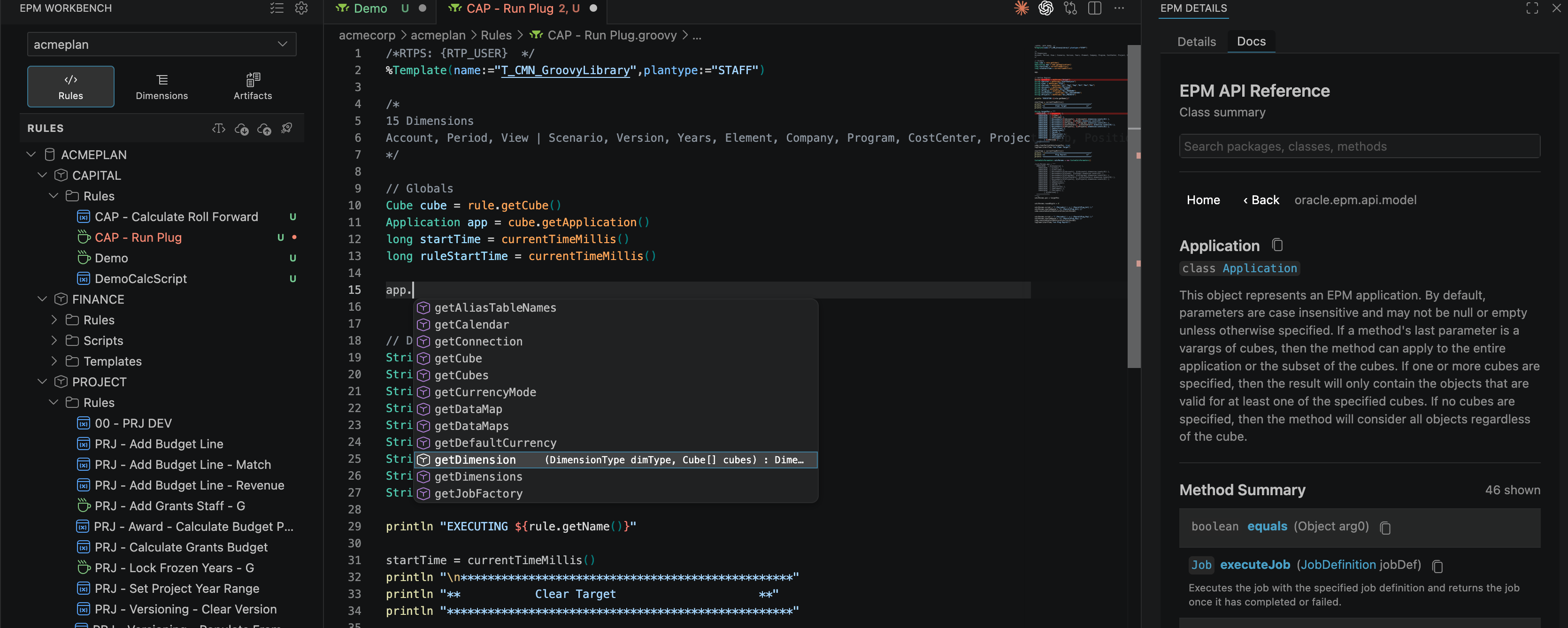
Notable features
Groovy IntelliSense
This is arguably the core of what I wanted. For those who don’t know, IntelliSense is a lot of things. Start typing App and it suggests Application; hit Tab to accept it. Type application. and it lists the Groovy methods you can use and their parameters. Hover over Application and it gives you the Groovy Javadoc details explaining what it is. Right-click Application, choose Go to API Docs, and it opens the API reference right in the editor.
Classes autocomplete, with method suggestions based on the class. Run-Time Prompts autocomplete from what is defined in the Rule header.
Templates autocomplete and list every available Template you can import. Hover to get a preview of the Body. Ctrl/Cmd-click to open it in a new tab. Functions and other definitions in the Template become available to completion too.
Calc-script IntelliSense
Once I started building the Groovy side, I realized I had to replicate it for calc-script development too. One of my biggest frustrations was not always remembering exact member names, which meant going into the member editor to search for them. Now EPM Workbench knows when I am typing a member and completes it from the outline. Can’t remember a substitution-variable name? Type & and it displays the available values. Can’t remember a [[SmartList]] name or [[PlanningFunction]] syntax? Type [[ and it suggests answers.
It does much more: it inserts ENDFIX and ENDIF, draws a line between FIX/ENDFIX pairs so you can see where they begin and end, and lets you know about issues—such as unrecognized member names—as you type.
Notice how I typed Total Rev and hit Tab. It resolved to TotalRev, the real member name. Type either the member name or its alias and EPM Workbench resolves it to the correctly cased member name.
Automatic formatting
Another frustration I have always had when working with several people during an implementation is formatting. People have very different ideas about how things should be formatted—and sometimes write them even worse. Inconsistent indentation, lowercase @ functions, aliases instead of member names, or five arbitrary blank lines between code blocks all make shared code harder to work with.
In modern development this is handled with automatic formatters that can be configured to a team’s preferences, so I built a configurable parser to do exactly that. Save a Script and the formatting is applied automatically.
Multiple Pods, Library Folders, and sync
As a consultant, I often switch between multiple clients or multiple Pods for the same client. Opening each Pod, opening Calculation Manager in each, and making sure I am in the right one becomes a hassle. I also find myself thinking, “I know I did something like this before at client XYZ.” We all take a Calculation Manager Snapshot at the end of a project “just in case” we can reuse it later.
Now, with a quick dropdown, I can switch between Pods and view all their Rules, Templates, and Scripts. I can set up Library Folders for reusable code I take from client to client. Everything is searchable and stays on my local machine.
At the click of a button, EPM Workbench can generate a Snapshot, download it, and bring it into the Workbench. It can go the other way too: Push one Rule or many, Deploy a Rule to the application, Execute it, and return its log directly to me—no more hunting through the Jobs page. It supports a Service Account, OAuth, and Offline Mode. Credentials are stored in VS Code’s native SecretStorage, never as plaintext on disk.
Configurable Validation Rules
Out of the box, EPM Workbench includes around 15 Validation Rules—common gotchas you want to avoid. Examples include leaving a trailing comma in a FIX statement, opening a FIX or IF without its matching ENDFIX or ENDIF, and enabling SET UPDATECALC ON without turning it back off.
These help EPM Developers avoid common footguns and enforce standards across a workstream. Better yet, you can add your own with the built-in Validation Rule builder. Put the configuration in a shared git repository and the same Validation Rules can be used by the entire team. Everything is configurable.
Dimension viewer
Navigating dimensions in the current editor is painful. It is slow on large dimensions; when you search, you have to remember whether to select member name, alias, or both; and you cannot simply press Enter—you have to click the little button. The Smart View extension improved this, but then I have to open Smart View and connect when I may only want to check how something is configured.
So I built a read-only dimension viewer—for now. It is available in the same Workbench, fully searchable, and most importantly, fast. To put it through its paces, I created a dimension with more than one million members. Search is near-instant, and navigation is so fast VS Code can barely keep up while scrolling.
Navigating a million-member dimension with instant search and filtering turns dimension browsing into a genuinely pleasant experience.
And much more
See EPM Workbench for the full feature set.
AI capabilities: a work in progress
AI is great at writing code when that code is well known and appears repeatedly in its training data. EPM’s flavor of Groovy and calc scripts is not very prevalent. AI sometimes does an admirable job, but it is not at the point where you can “just let it go.”
AI also comes with corporate policies, client policies, and subscription questions. I decided the best approach was to let you bring your own AI—and your own subscriptions—while EPM Workbench provides the context those tools need. None of your inference runs through us. You can use providers’ native VS Code extensions, including Claude, Codex, or Copilot, and they can work with your Rules and applications. They can access the Javadocs and Essbase calc documentation and review your existing code to see how you have handled similar problems in the past. By design, everything you see in EPM Workbench exists on your machine, so your AI tools can access it too.
Many of you have heard of MCP servers. They can be useful when you want to connect an AI directly to an EPM application, but the vision for EPM Workbench is not an MCP server. I am prototyping Agent Skills that provide practical guidance for navigating the EPM Workbench structure and finding what an assistant needs. The epmwb command line gives AI tools a consistent path to find answers, validate Rules, and work in the right direction.
I wanted to get the core capabilities right first, always leaving a path for AI as I went, and then focus on the deeper AI experience once the groundwork was laid.
Where does that leave us?
It has been an exciting few months, and I am excited about where the product is and where it is heading. I have used it nearly every day for the last few months and, while I may be biased, it is an amazing experience to have these capabilities at my fingertips. The development efficiency has been beyond my expectations. I have shown it to several close friends in the industry, and their reactions tell me I am on the right path.
This is the initial release, and I already have a lot planned for the roadmap, but I want to hear from you. I am offering a 30-day free trial with Full Access—hey, I need to make a living too. I would love any feedback you can provide or details about any issues you find. You can open an issue on GitHub or email support@epmworkbench.com.
For individuals: one Seat Key can be used by the same person on any number of machines. I’m trying an honor system here.
For teams: purchase multiple seats, then assign and manage each person’s Seat Key by email in the admin portal—one seat per person.
Getting started
- Download and install VS Code.
- Open Extensions, search for “EPM,” and install EPM Workbench.
See the EPM Workbench documentation for the complete getting-started guides. The docs are still a work in progress and will be updated continually.