
Dimensions
The Dimensions module is a reader for the metadata your Pod Folder already holds: every dimension, every member, and every property, without opening a browser. Browsing works on any tier once the data is on disk. Getting it there needs either Pull (Full tier) or an Import from a Snapshot (Offline or Full).
The Dimensions tab
Section titled “The Dimensions tab”The module tabs sit under the Pod picker in the EPM Workbench sidebar. Dimensions is the middle one, between Rules and Artifacts.
Each row is one dimension: its name, and a muted count line reading
12,455 Stored | 3,180 Not Stored. The counts are recorded when the metadata is
brought down, so a dimension whose data predates them shows the name only. Rows
are ordered by the application’s plan performance order.
Two empty states are possible. With no Pod selected, the list reads
No active Pod. Select one from the Pod picker above. With a Pod selected but no
metadata down yet, it reads Pull to load dimensions.
The Pull from EPM icon in the DIMENSIONS header brings the current
metadata down for the whole application. It needs the Full tier; on Free or
Offline it shows an Upgrade to Full Access tooltip and prompts to upgrade
instead of acting. In Offline Mode, importing a Snapshot fills the same list.
The dimension viewer
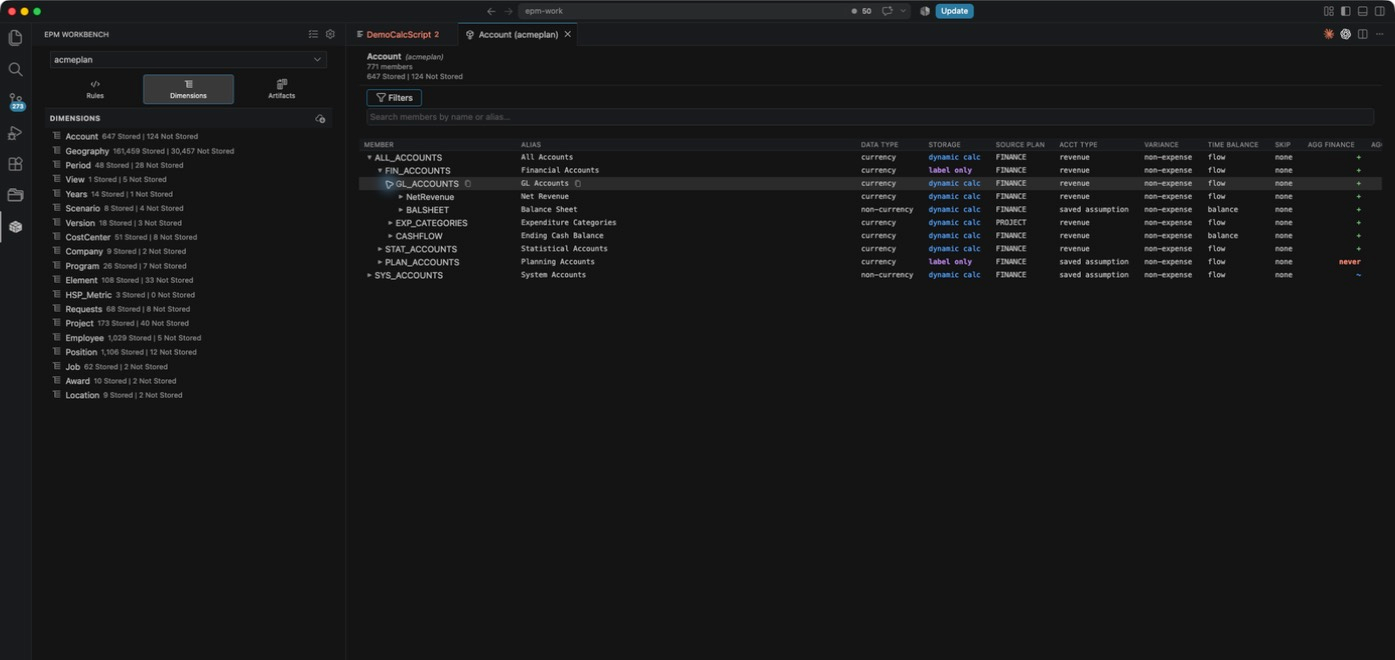
Section titled “The dimension viewer”Click a dimension to open it in an editor tab named after the dimension and the
Pod, for example Account (epmwb-tester). The header repeats the member count
and the Stored / Not Stored line. The first column is always Member, an
outline tree with an expand arrow on every parent. The columns beside it follow
the dimension:
| Column | Appears on |
|---|---|
| Alias | Every dimension. |
| Storage | Every dimension. |
| Smart List | Dimensions where at least one member uses a smart list. |
| Data Type, Source Plan, Acct Type, Variance, Time Balance, Skip | Account-tagged dimensions. |
| Start Period, End Period | Dimensions that carry period properties, such as Scenario. |
| Agg FINPLAN, Agg CAPEX, … | One aggregation column per plan type. |
Columns size themselves to their content on open. Drag the divider in the header to resize one, and the width sticks for that dimension across a reopen.
Clicking a member selects it and shows its complete property set in the EPM Details panel, grouped into Properties and, where a member’s plan types diverge, By plan type. If the panel is not showing, it opens on the first click. Hovering a member name or alias reveals a copy button.
Search and filters
Section titled “Search and filters”The search field above the tree matches a member’s name or its default alias,
case-insensitive, as you type. Results are not a flat list: matches keep their
tree context, so each one still shows under its real parents at its real depth.
A count sits above the results, such as 1,204 matches.
The Filters button opens a Filter by property popover whose categories follow the dimension you have open:
- Level:
Level 0(no children) orParent. - One category per visible property column, listing that column’s distinct
values plus
(blank)when some members leave it empty. A column with too many distinct values is free text and belongs to search, so it is left out. - Has Formula:
Any, or one option per plan type. - Plan Types: which plan types the Agg columns cover. This one changes the columns rather than filtering members.
Each active category becomes a chip under the button, showing its selected
values (or 3 selected past two). Click a chip to change it, click its X to drop
it, or Clear all to reset the bar. Filters and search combine: a member must
match the text and pass every active category.
Working with the tree
Section titled “Working with the tree”Right-click any member for its menu:
| Item | What it does |
|---|---|
| Copy Name | Puts the member name on the clipboard. |
| Copy Alias | Puts the default alias on the clipboard. Shown when the member has one. |
| Show as Top | Narrows the whole view to that member and its descendants. A Top chip appears in the filter bar; its X restores the full outline. |
| Show in Tree | Drops the search, filters, and Top scope, then reveals the member in the full outline with its parents expanded. |
| Expand All | Opens the entire outline, or the Top-scoped subtree. |
| Expand All Descendants | Opens everything under the clicked member. |
| Collapse All | Returns to the roots. |
| Collapse Children | Keeps the member open on its direct children and folds everything deeper. |
Very large dimensions are handled without truncating the outline. Expand All
streams the tree down in chunks and prints a running row count while it works,
so a dimension of a million members expands all the way. Search is capped at
50,000 shown matches to keep the panel responsive; past that the count line
reads Showing 50,000 of 214,388 matches., and narrowing the search or adding a
filter gets you to the members you want.
Read-only by design
Section titled “Read-only by design”Member formula Scratch Pad
Section titled “Member formula Scratch Pad”When a selected member carries a formula, the EPM Details panel renders it in a highlighted code box with an Edit in Scratch Pad button above it. The button opens the formula in a new untitled editor in the right language: Calc Script for a member on a BSO cube, MDX for one on an ASO cube. When the language cannot be pinned down (a base formula whose plan types are mixed), you are asked first, under the title Member Formula Scratch Pad, with two choices: Calc Script (BSO) and MDX (ASO).
Inside that tab you get the same intelligence as any rule file: completion, hover documentation, and inline errors and warnings as you type. Member and alias completion works too when the workspace holds exactly one Pod, since that Pod is unambiguously the formula’s context. With no Pod, or several, function and keyword intelligence still works and member intelligence is skipped.
The Scratch Pad is throwaway by design. Nothing is sent to the Pod, nothing is
written to disk, and closing the tab discards it. Copy and paste is how a change
travels back to Oracle. To keep an MDX experiment around, save the file with an
.essmdx extension and it gets the same MDX intelligence.