
Creating Rules
A custom Validation Rule is a description of what to look for, not code. You fill in a form in the Validation Rules panel, test the rule against a snippet, and save it to one of the three scopes.
Open the Validation Rules panel
Section titled “Open the Validation Rules panel”Configuring Validation Rules requires Offline or Full Access. On Free, rules still run on the file you have open, but the panel is not available.
- Click the checklist icon in the EPM Workbench sidebar title bar. You can also
press
Ctrl+Shift+P/Cmd+Shift+Pand run EPM Workbench: Validation Rules. - If your workspace has more than one Pod, pick one from the selector at the top. Rules resolve per Pod, so the panel always shows a Pod’s point of view.
Under the title is the scope chain: Global, then Domain, then Pod,
with the path of each validation-rules.json beneath it. A scope that has no
file yet is marked not created. Clicking that scope creates the file and opens
it in the editor, and so does the first change you make at that scope.
The panel has two tabs: Rules and New Rule.
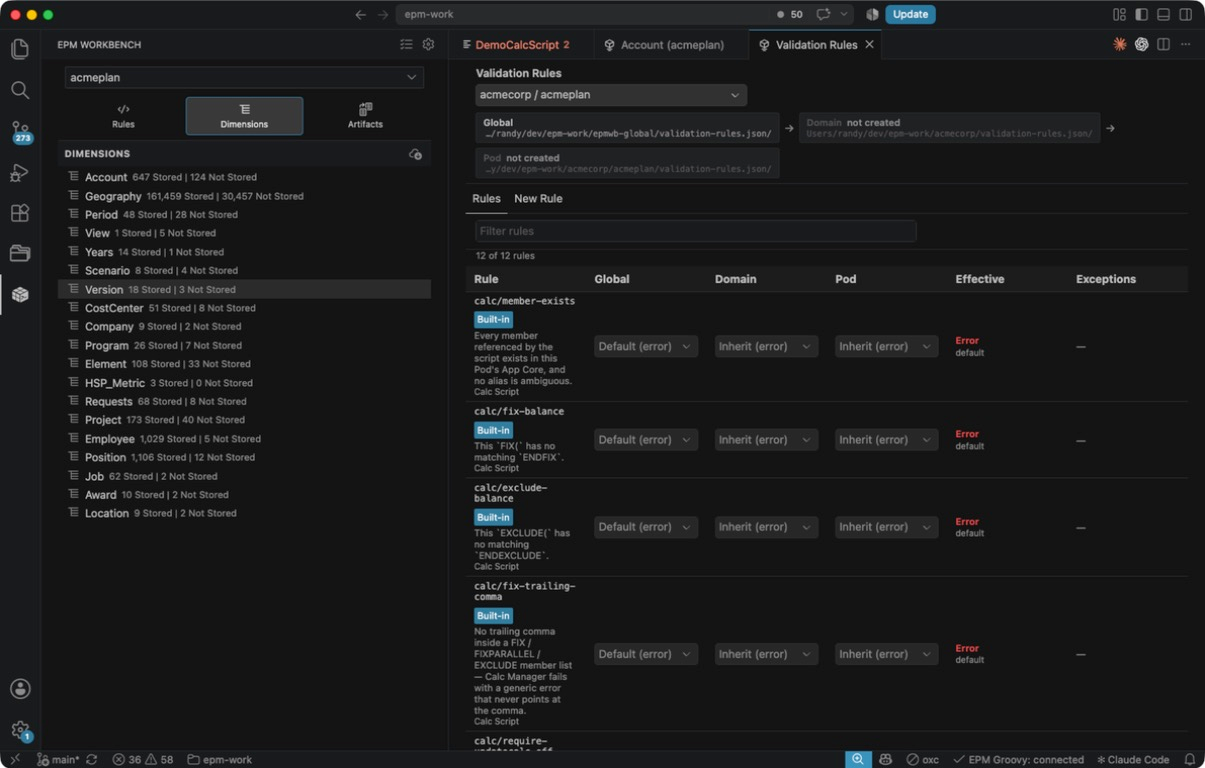
The Rules tab
Section titled “The Rules tab”The Rules tab is a table of every rule that applies to the selected Pod, built-in and custom together.
- The first column is the rule id, a Built-in or Custom badge, the one-line description, and which languages the rule reads (Calc Script, Groovy, or both).
- Then one column per scope. Each cell is a dropdown offering Inherit, Error, Warning, Info, and Off. The parenthetical on Inherit spells out what this rule would resolve to if the scope said nothing, so a rule sitting at warning reads Inherit (warning). The broadest scope reads Default (…) instead, since there is nothing above it.
- Effective shows what the rule actually runs at for this Pod, and the scope that decided it.
- Exceptions shows a count. Click it to open a drawer listing each excepted artifact with its reason and its scope, plus the author and the date when the Exception records them, and a Remove button.
Use the Filter rules box to search ids and descriptions. The line under it reports how many of the total are showing.
Changing a dropdown writes the corresponding validation-rules.json
immediately, and the table redraws from what the files now say. To turn a rule
off for one Pod only, set Off in the Pod column. To turn it off everywhere,
set Off in the Global column.
The New Rule tab
Section titled “The New Rule tab”Here is a rule worth writing: hard-coded years in calc scripts. FIX(FY24)
works today and quietly breaks next year, and your application already has a
substitution variable for the current year.
Open New Rule and fill the fields in order.
Rule id. custom/no-hardcoded-years. Ids are namespaced and unique. Custom
rules conventionally live under custom/, and if you type a bare name the panel
adds the prefix when you leave the field. An id that matches a built-in replaces
that built-in for the Pods this scope covers.
Kind. What the rule looks for. Choose Forbid a pattern. The six kinds are described below; changing this changes the fields underneath it.
Message. The sentence users read in the Problems panel. Write it as advice,
not as an accusation: Hard-coded years belong in a substitution variable.
Pattern. This field belongs to the kind you picked. For Forbid a
pattern, every match becomes a finding, anchored at the match itself. Enter
\bFY[0-9]{2}\b. Patterns are regular expressions.
Reading that one left to right: FY matches those two letters; [0-9]{2}
matches exactly two digits, so FY24 and FY26 both match but FY2 does not;
and the \b at each end means “word boundary”, which keeps the match from
starting or ending in the middle of a longer word. Without the boundaries,
FY26 inside a member name such as "PriorFY26Total" would be flagged too.
Severity. The level the rule runs at when no scope configures it. Leave it at Warning. Any scope can raise it to Error later.
Languages. Which bodies the rule reads: Calc Script, Groovy, or
both. Tick Calc Script only. Beside them is Case-sensitive patterns.
Essbase identifiers ignore case, so patterns do too unless you tick this. Leave
it off so fy24 is caught alongside FY24.
Scope, in the Save section at the bottom, is which validation-rules.json
the rule is written into. It defaults to the Pod. Broader scopes reach more
Pods: see Sharing Rules for how to
choose.
The six kinds
Section titled “The six kinds”| Kind | What it does | Fields |
|---|---|---|
| Forbid a pattern | Every match in the body is a finding. | Pattern |
| Require a pattern | The body must contain at least one match, or a finding is reported at the top of the file. | Pattern, Only when (optional) |
| Balance a token pair | Every opening token needs a closing one, and vice versa. | Opening token, Closing token, Unmatched-close message (optional) |
| Require an order | One pattern must appear before another. | Must come first, Must come after, Report (which side of the leftovers is flagged) |
| Limit a count | At most N occurrences of a pattern. | Pattern, Maximum, Closing token (optional) |
| Name convention | Tested against the artifact name rather than the body. | Pattern, and a box for whether the name must match or must not match |
Two details worth knowing. On Limit a count, filling in the optional closing token turns the pattern pair into an open/close pair, and Maximum then bounds nesting depth instead of total occurrences, which is how you cap nested FIX blocks. On Name convention, the pattern is case-sensitive by default, because a convention that ignores case cannot say “must be TitleCase”.
Try it
Section titled “Try it”Below the fields is a test area. Paste a snippet, say what you expect, and click Run.
- Paste something the rule should catch, for example
FIX(FY24, "Actual"). - Leave Should be flagged selected and click Run. The verdict says the
rule fires, with a count and each finding’s message and matched text. If it
reads
No finding, the pattern is wrong. - Click Keep this snippet as a “must flag” example.
- Now paste
FIX(&CurrentYear, "Actual"), select Should be accepted, and click Run. It should reportSilent, as it should be.Keep that one too.
For a Name convention rule, paste an artifact name instead of a snippet, since that kind reads the name.
Kept snippets ship with the rule and are re-run every time it loads, so a rule cannot silently stop working. The panel refuses to save a rule with no “must flag” example, and refuses to save one that fails its own examples.
Pick the Scope, then click Save rule. The panel confirms with
Saved custom/no-hardcoded-years to Pod. and returns you to the Rules tab,
where the new rule appears with a Custom badge and its own column of scope
dropdowns. Findings start appearing in open files right away.
Reset clears the form without saving.
Editing validation-rules.json by hand
Section titled “Editing validation-rules.json by hand”The panel and the file edit the same configuration. validation-rules.json
is plain JSON, and because EPM Workbench ships the schema, VS Code gives you
completion and hovers on every field as you type, with or without the panel
open.
There are three top-level keys:
configure: rule id to the severity it runs at in this scope, or"off".define: your custom rules.exceptions: per-artifact opt-outs.
Each is optional. A file may hold one, two, or all three.
{ "$schema": "https://www.epmworkbench.com/schemas/validation-rules.json", "configure": { "calc/require-aggmissg-on": "off", "calc/all-dimensions-accounted": "error" }, "define": [ { "id": "custom/no-hardcoded-years", "kind": "forbid-pattern", "languages": ["esscalc"], "message": "Hard-coded years belong in a substitution variable.", "severity": "warning", "pattern": "\\bFY[0-9]{2}\\b", "examples": { "bad": ["FIX(FY24, \"Actual\")"], "good": ["FIX(&CurrentYear, \"Actual\")"] } } ]}languages uses the internal names for the two body types: esscalc for Calc
Script (.csc) and groovy for Groovy Rules (.groovy).