
Settings
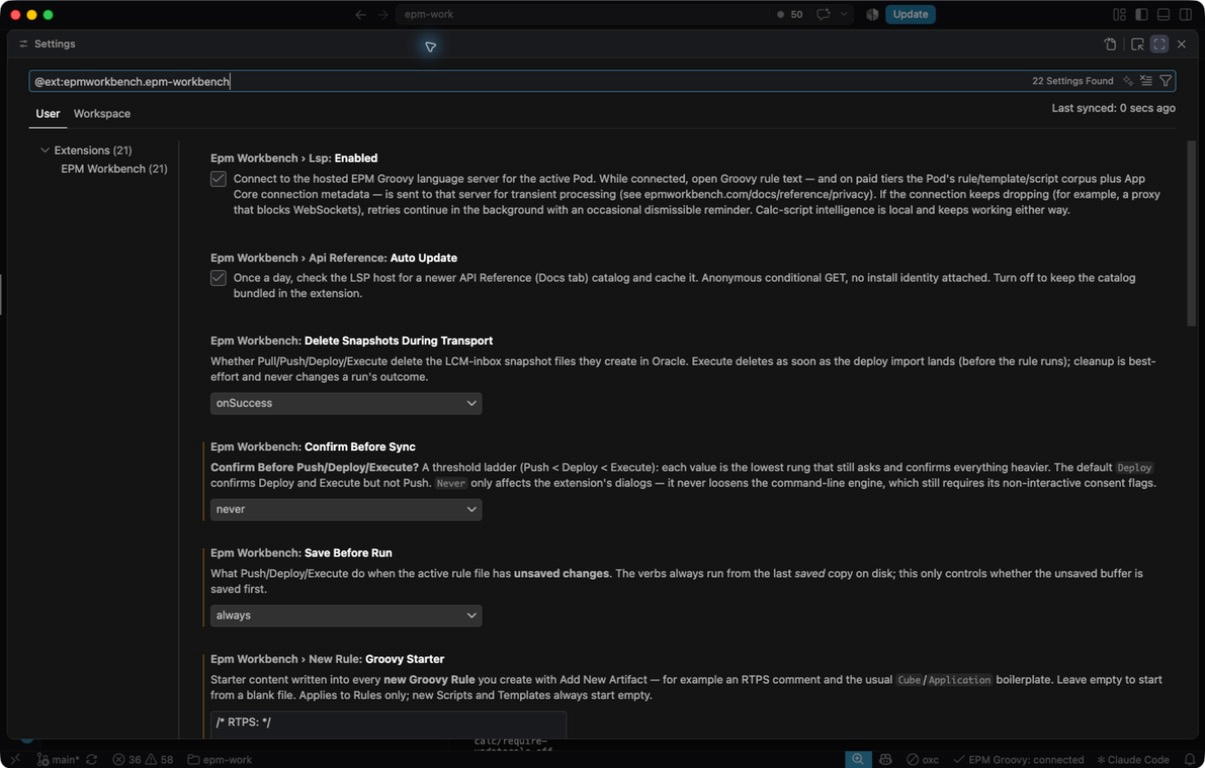
EPM Workbench contributes 26 settings. All of them live in the normal VS Code Settings editor, so they follow the usual User and Workspace scopes.
Three ways to get there:
- Click the gear icon in the EPM Workbench sidebar.
- Run EPM Workbench: Open Settings from the Command Palette
(
Ctrl+Shift+P/Cmd+Shift+P). - Open VS Code Settings (
Ctrl+,/Cmd+,) and filter for “EPM Workbench”.
Language intelligence
Section titled “Language intelligence”epmWorkbench.lsp.provider
Section titled “epmWorkbench.lsp.provider”Default: auto
Where Groovy completion, hover, and compile diagnostics come from. The extension ships a language service that runs on your own machine, and there is a hosted one for machines without a Java runtime.
| Value | Behavior |
|---|---|
auto | Try the local service first and fall back to the hosted one if it cannot start (default). |
local | Only ever use the local service. Java 21 or newer is required, and no rule text leaves your machine. |
hosted | Skip the Java check and connect straight to the hosted service. |
Running locally needs Java 21 or newer on your machine; the extension does not bundle a runtime. When the hosted service is in use instead, the text of the Groovy rule you have open is sent there for processing in memory. On the Offline and Full tiers, so is the text of the Pod’s other Rules, Templates, and Scripts, which is what makes cross-artifact intelligence work, along with the names of the Pod’s Connections and its Smart Lists, including each Smart List’s entry names and labels. Nothing is stored there. See Privacy for the full account.
If your network keeps dropping a hosted connection (a strict proxy, for example), the extension retries quietly in the background and shows an occasional dismissible reminder. Calc-script intelligence is local TypeScript either way and keeps working offline.
epmWorkbench.lsp.javaPath
Section titled “epmWorkbench.lsp.javaPath”Default: "" (empty)
The full path to the Java 21 or newer executable the local language service
should use. Leave it empty and the extension finds Java from JAVA_HOME and your
PATH, which is what usually happens.
Set it when you have several runtimes installed or Java is somewhere unusual. On
Windows point it at java.exe, not javaw.exe; on macOS and Linux at the java
file inside the runtime’s bin folder. Running EPM Workbench: Select Java
Runtime from the Command Palette picks the file and validates the version for
you, then writes it here.
epmWorkbench.apiReference.autoUpdate
Section titled “epmWorkbench.apiReference.autoUpdate”Default: true
Once a day, looks for a newer API Reference catalog for the Docs tab and caches it locally. The request is anonymous and carries no identifying information about your install. Turn it off to stay on the catalog that shipped inside the extension.
epmWorkbench.diagnostics.holdActiveLine
Section titled “epmWorkbench.diagnostics.holdActiveLine”Default: true
While your cursor is on a line you are editing, new EPM warnings for that line are held back until you move off it, because a half-typed line is expected to look wrong. Every other line updates immediately. This covers Validation Rule findings in calc-script and Groovy rules, MDX scratchpad results, and Groovy compile diagnostics.
Pull, Push, Deploy, and Execute
Section titled “Pull, Push, Deploy, and Execute”epmWorkbench.confirmBeforeSync
Section titled “epmWorkbench.confirmBeforeSync”Default: deploy
How much confirmation the extension asks for before writing to or running against your Pod. The four values form a ladder from lightest to heaviest action (Push, then Deploy, then Execute). Whichever rung you pick is the lowest one that still asks, and everything heavier asks too.
| Value | What it confirms |
|---|---|
always | Push, Deploy, and Execute |
deploy | Deploy and Execute; Push goes straight through (default) |
execute | Execute only; Push and Deploy go straight through |
never | Nothing; all three proceed immediately |
never only silences the extension’s own dialogs; the engine underneath keeps
its own consent requirements for Deploy and Execute.
epmWorkbench.saveBeforeRun
Section titled “epmWorkbench.saveBeforeRun”Default: ask
What Push, Deploy, and Execute do when the rule file you are acting on has unsaved changes. These actions always work from the last saved copy on disk, so this only decides whether your unsaved edits get written first.
| Value | Behavior |
|---|---|
ask | Prompt each time (default). The dialog’s “Always…” buttons rewrite this setting for you. |
always | Save the file, then run, with no prompt. |
never | Leave the file alone and use the last saved copy. |
epmWorkbench.afterMergeAction
Section titled “epmWorkbench.afterMergeAction”Default: none
What happens to merged artifacts once you finish a Pull review with Complete Merge. A merged file has content that is not in Calculation Manager yet, so the review offers to send it there in the same gesture. This setting is where that dropdown starts.
| Value | Behavior |
|---|---|
none | Keep the merged files local (default). You can Push them whenever you like. |
push | Push the merged artifacts to Calculation Manager right away. |
deploy | Deploy them, which also pushes them. |
The review’s Remember my selection checkbox writes your choice here, so the remembered answer and this setting are the same thing. Whatever you pick, choosing Push or Deploy in the review counts as the confirmation for that action, and the chained Run still does its own Drift Check first. See Drift and Merging.
epmWorkbench.deleteSnapshotsDuringTransport
Section titled “epmWorkbench.deleteSnapshotsDuringTransport”Default: onSuccess
Pull, Push, Deploy, and Execute move artifacts by creating a temporary Snapshot file in your Pod’s Oracle Migration inbox. These are staging files the actions create and consume on the Oracle side, not Snapshots you asked for, and the default cleans them up for you, so most people never need to change this. Cleanup is best effort and never changes the outcome of a Run.
| Value | Behavior |
|---|---|
always | Delete the Snapshot even when the Run fails or is canceled. |
never | Keep every transport Snapshot in the inbox. |
onSuccess | Delete once the Snapshot has served its purpose (default). A later rule failure still deletes; only a failed transfer keeps the file. |
For Execute, the Snapshot is removed as soon as the deploy lands, before the rule runs.
New rule starters
Section titled “New rule starters”Both starters apply to Rules only. New Scripts and Templates always start empty.
epmWorkbench.newRule.groovyStarter
Section titled “epmWorkbench.newRule.groovyStarter”Default: "" (empty)
Text written into every new Groovy Rule you create with Add New Artifact. Use it for the boilerplate you type anyway, such as a Run-Time Prompt declaration comment and your usual cube and application setup:
/*RTPS: {Scenario} {Version}*/Leave it empty to start from a blank file. The field opens in a multi-line editor, so a full header block is fine.
epmWorkbench.newRule.calcScriptStarter
Section titled “epmWorkbench.newRule.calcScriptStarter”Default: "" (empty)
The same thing for every new Calc Script Rule created with Add New Artifact. Leave it empty to start from a blank file.
Formatting
Section titled “Formatting”epmWorkbench.groovyFormat.formatOnSave
Section titled “epmWorkbench.groovyFormat.formatOnSave”Default: true
Runs the EPM Workbench Groovy formatter when you save a .groovy rule file
inside a Pod Folder, whether that file is a Rule, a Script, or a Template. The
groovy language ID is shared with ordinary
Groovy tooling, so this is scoped strictly to Pod Folders: build.gradle,
Jenkinsfiles, and any other .groovy file outside a Pod Folder are never
touched.
epmWorkbench.calcFormat.formatOnSave
Section titled “epmWorkbench.calcFormat.formatOnSave”Default: true
Runs the calc-script formatter when you save a .csc rule file inside a Pod
Folder, Rules, Scripts, and Templates alike. Every save then writes the same
canonical text, so spacing habits never show up as differences against the Pod.
Files outside a Pod Folder are never touched.
The remaining options control what that calc-script formatter does. They also shape the completions you accept, so a snippet never fights the formatter.
epmWorkbench.calcFormat.indentStyle
Section titled “epmWorkbench.calcFormat.indentStyle”Default: tab
Indent calc scripts with a tab (tab) or with spaces (spaces).
epmWorkbench.calcFormat.indentSize
Section titled “epmWorkbench.calcFormat.indentSize”Default: 2
Spaces per indent level. When Indent Style is tab, calc-script editors
also display each tab at this width.
epmWorkbench.calcFormat.alignMemberCase
Section titled “epmWorkbench.calcFormat.alignMemberCase”Default: true
Rewrites member names to the exact casing they have in the application, so what you type matches what Oracle has.
"net income" → "Net Income"epmWorkbench.calcFormat.convertAliases
Section titled “epmWorkbench.calcFormat.convertAliases”Default: true
Replaces an alias with the member name it points to, when the alias resolves to exactly one member. Ambiguous aliases are left alone.
epmWorkbench.calcFormat.quoteMembers
Section titled “epmWorkbench.calcFormat.quoteMembers”Default: true
Wraps member names and aliases in quotes when you have written them bare.
Net Income → "Net Income"epmWorkbench.calcFormat.keywordCase
Section titled “epmWorkbench.calcFormat.keywordCase”Default: upper
Casing for block keywords: upper gives FIX / ENDFIX / IF / ENDIF,
proper gives Fix / EndFix / If / EndIf.
FIX( "Actual" ) ... ENDFIX // upperFix( "Actual" ) ... EndFix // properepmWorkbench.calcFormat.functionCase
Section titled “epmWorkbench.calcFormat.functionCase”Default: documented
Casing for calc-script @-Functions. documented uses Oracle’s own spelling, so
@RELATIVE stays uppercase and @CalcMgrCompare keeps its mixed case. upper
puts every function in uppercase. Custom functions the extension does not
recognize keep whatever you typed.
@calcmgrcompare(...) → @CalcMgrCompare(...) // documented@calcmgrcompare(...) → @CALCMGRCOMPARE(...) // upperThis one is calc-script only. It never touches Groovy rules or %Template and
%Script macros.
epmWorkbench.calcFormat.blockBlankLines
Section titled “epmWorkbench.calcFormat.blockBlankLines”Default: true
Adds blank lines around FIX blocks that contain other blocks, and after
ENDFIX and ENDIF, so nesting is easier to follow. Innermost blocks stay
tight.
epmWorkbench.calcFormat.spaceAroundOperators
Section titled “epmWorkbench.calcFormat.spaceAroundOperators”Default: true
Puts spaces around binary operators (=, ==, !=, <, >, +, -, *,
/, %).
"Net Income"="Revenue"-"Expense"; → "Net Income" = "Revenue" - "Expense";epmWorkbench.calcFormat.spaceAfterCommas
Section titled “epmWorkbench.calcFormat.spaceAfterCommas”Default: true
Puts a space after each comma.
FIX( "Actual","FY26" ) → FIX( "Actual", "FY26" )epmWorkbench.calcFormat.spaceInsideParens
Section titled “epmWorkbench.calcFormat.spaceInsideParens”Default: true
Puts spaces just inside block and command headers, and inside an @function
that takes another @function as an argument. Plain @function calls stay
tight either way.
FIX( "Actual", "FY26" ) "Net Income" = @SUM( @RELATIVE("Total Entity", 0) );ENDFIXTurned off, the same script formats as:
FIX("Actual", "FY26") "Net Income" = @SUM(@RELATIVE("Total Entity", 0));ENDFIXLicensing
Section titled “Licensing”epmWorkbench.licensing.onlineRefresh
Section titled “epmWorkbench.licensing.onlineRefresh”Default: true
Once a day, the extension contacts epmworkbench.com to keep your Seat Key current. Renewals, plan changes, and extensions apply on their own, without you re-entering the key, and a revoked or ended seat drops back to the Free tier with a notification.
The request sends only your Seat Key and this machine’s anonymous VS Code machine id. It never sends file content. Turn it off on machines with no internet access: the key stays valid until the expiry date built into it. See Seat Keys for how activation works.
epmWorkbench.licensing.autoTrial
Section titled “epmWorkbench.licensing.autoTrial”Default: true
On a first install with no Seat Key entered, asks epmworkbench.com to start this machine’s one 30-day free trial of the Full tier, so you can try the paid features without signing up for anything first. Each machine gets one trial.
The request sends only this machine’s anonymous VS Code machine id, never file content. Turn it off to stay on the Free tier until you enter a Seat Key yourself.
Telemetry
Section titled “Telemetry”epmWorkbench.telemetry.internal
Section titled “epmWorkbench.telemetry.internal”Default: false
Marks this machine’s telemetry as internal so it can be excluded from usage figures. It exists for EPM Workbench’s own development and test machines. Leave it off unless you work on EPM Workbench itself.
This flag does not turn telemetry on or off. That is VS Code’s own
telemetry.telemetryLevel setting, described in
Privacy.