
Auto-Sync
Auto-Sync checks your Pod every few minutes for changes made in EPM, and brings them into your Pod Folder while you work. If a colleague saves a Rule in Calculation Manager, your copy is updated without a Pull. Auto-Sync only reads from EPM. It never Pushes or Deploys anything.
Auto-Sync is on for every connected Pod unless you turn it off. It only checks the Pod you have picked in the Pod picker. It needs Oracle EPM 26.04 or later, and it only keeps up to date what you already have, so Pull the Pod once first.
What it brings in
Section titled “What it brings in”Each check brings in what changed on the Pod since the last one:
- Rules, Templates, and Scripts. One that changed in EPM is updated in your folder. If you’ve changed it here too, including unsaved changes in an open tab, your copy is kept as it is, and its status changes to ! (Drift). See Drift and Merging.
- Dimensions. A dimension that changed in EPM is downloaded again. A new dimension is downloaded, and one deleted in EPM is removed from the Dimensions tab.
- Artifacts. When a Smart List, Substitution Variable, or Connection changes in EPM, the Artifacts tab is updated, and its User Variables with it. A change to a User Variable on its own comes in with your next Pull.
The first check after a Pull brings in anything changed since that Pull.
Auto-Sync doesn’t bring in a Rule, Template, or Script that’s new in EPM, or notice one deleted in EPM. A Pull does both. See Rules deleted in EPM.
See what it changed
Section titled “See what it changed”Auto-Sync isn’t a Run, so it doesn’t show in the EPM Runs panel. It writes what
it did in the Output panel instead. Open it with View > Output, and
pick EPM Workbench from the list at its top right. Each
line starts with [auto-sync], for example:
Auto-Sync updated 2 files:, with one file on each line after it.Auto-Sync found 1 changed in EPM and edited here (kept your version):Auto-Sync refreshed 3 dimensions:Auto-Sync refreshed Artifacts (Smart Lists, Substitution Variables, Connections, User Variables).
An open dimension
Section titled “An open dimension”A dimension you have open in a tab doesn’t change while you’re looking at it.
When a newer copy comes in, the tab shows Updated in EPM. with a Reload
button. Reload opens the new copy from the top, as if you’d just opened it.
If the dimension was deleted in EPM, the tab shows
This dimension was deleted in EPM. and keeps what it has.
An open Artifacts table updates by itself.
The Auto-Sync banner
Section titled “The Auto-Sync banner”The banner under the Pod picker shows Auto-Sync for the picked Pod. Click it to open the Pod’s form.

| Banner | What it means |
|---|---|
| Auto-Sync Enabled | It’s on. Beside it: when it last synced, such as Synced 2m Ago, Synced Just Now, or Not Synced Yet, and when it checks next, such as Check in 2m. It shows Checking… while a check runs. |
| Auto-Sync Off | It’s turned off for this Pod, or nothing is ticked under Sync Scope. |
| Auto-Sync Paused | Five checks in a row failed, so it stopped for 24 hours. The banner says when it starts again, for example Resumes in 3h. The Output panel has the error. A Pull still works in the meantime. |
| Auto-Sync Disabled: Authentication Error | EPM refused the Pod’s sign-in. See below. |
| Auto-Sync Disabled: No Credentials Provided | The Pod has no way to sign in. Add a Service Account or connect with OAuth in the Pod’s form, and Auto-Sync starts by itself. |
Checks that fail because you’re offline don’t count toward the five.
If a Pull, Push, Deploy, or Execute is running on the Pod when a check is due, Auto-Sync skips that check and tries again next time.
Turn it on or off
Section titled “Turn it on or off”- In the Pod picker, hover the Pod and click Edit Pod. Or click the Auto-Sync banner under the Pod picker.
- Scroll down to Auto-Sync.
- Change the options, then click Save & Sync Later to save them. Save & Sync Now saves them and Pulls the whole Pod as well.
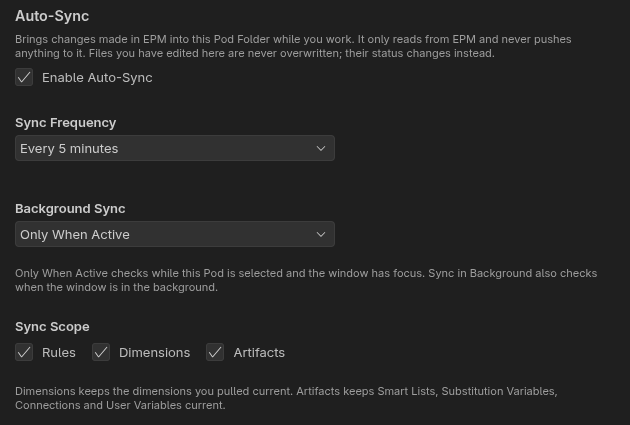
| Option | What it does |
|---|---|
| Enable Auto-Sync | Turns it on or off for this Pod. Default: on. |
| Sync Frequency | How often it checks: every 1, 2, 5, 10, 15, or 30 minutes, or every hour. Default: Every 5 minutes. |
| Background Sync | Only When Active, the default, checks while this Pod is picked and the VS Code window is in front. Sync in Background also checks while the window is behind other windows. |
| Sync Scope | Tick what to keep up to date: Rules, Dimensions, and Artifacts. Default: all three. |
These options are kept on your computer, so each person on a team sets their own.
When you pick another Pod in the Pod picker, it’s checked straight away if a check is due.
Offline Pods, archived Pods, and Library Folders can’t sign in to EPM, so they have no Auto-Sync options or banner.
When EPM refuses the sign-in
Section titled “When EPM refuses the sign-in”Too many refused sign-ins can lock an EPM account. So when EPM refuses the Pod’s sign-in, Auto-Sync stops at once, in every VS Code window, and doesn’t try again by itself.
It starts again when you fix the sign-in:
- Update the Service Account’s password with EPM Workbench: Manage Service Accounts. This restarts Auto-Sync for every Pod that uses that account.
- In the Pod’s form, pick a different Service Account or switch to OAuth, or click Test Connection and get a success message.
- For OAuth, connect your EPM account again.
Good to know
Section titled “Good to know”- Oracle added the list of recent changes in EPM 26.04. On an older Pod,
Auto-Sync never brings anything in, and the banner stays on
Not Synced Yet. See Which EPM version a feature needs. - To read what changed, a check that finds a change exports it from the Pod,
then deletes the export. Oracle’s job list shows these exports, with names
that start with
epmwb-autosync-. - Push, Deploy, and Execute still check the Pod for changes before they send anything, whatever Auto-Sync found. See The Drift Check.