
The Lint Rules Panel
The Lint Rules panel is where you set how serious each Lint Rule is, turn Lint Rules off, and write your own. Your own Lint Rules are built from a form, not written as code, and you can test them before you save.
Open the panel
Section titled “Open the panel”Click the checklist icon at the top of the EPM Workbench sidebar, or run
EPM Workbench: Lint Rules from the Command Palette (Ctrl+Shift+P, or
Cmd+Shift+P on a Mac).
The panel shows the Lint Rules for the Pod picked in the sidebar. In the panel, “rule” means a Lint Rule, as in New rule. To see another Pod’s, pick that Pod in the sidebar. The panel has two tabs, Lint Dashboard and View Rules. It opens on View Rules.
View Rules
Section titled “View Rules”View Rules lists every Lint Rule for the Pod, grouped by level: errors, warnings, info, and the ones turned off.
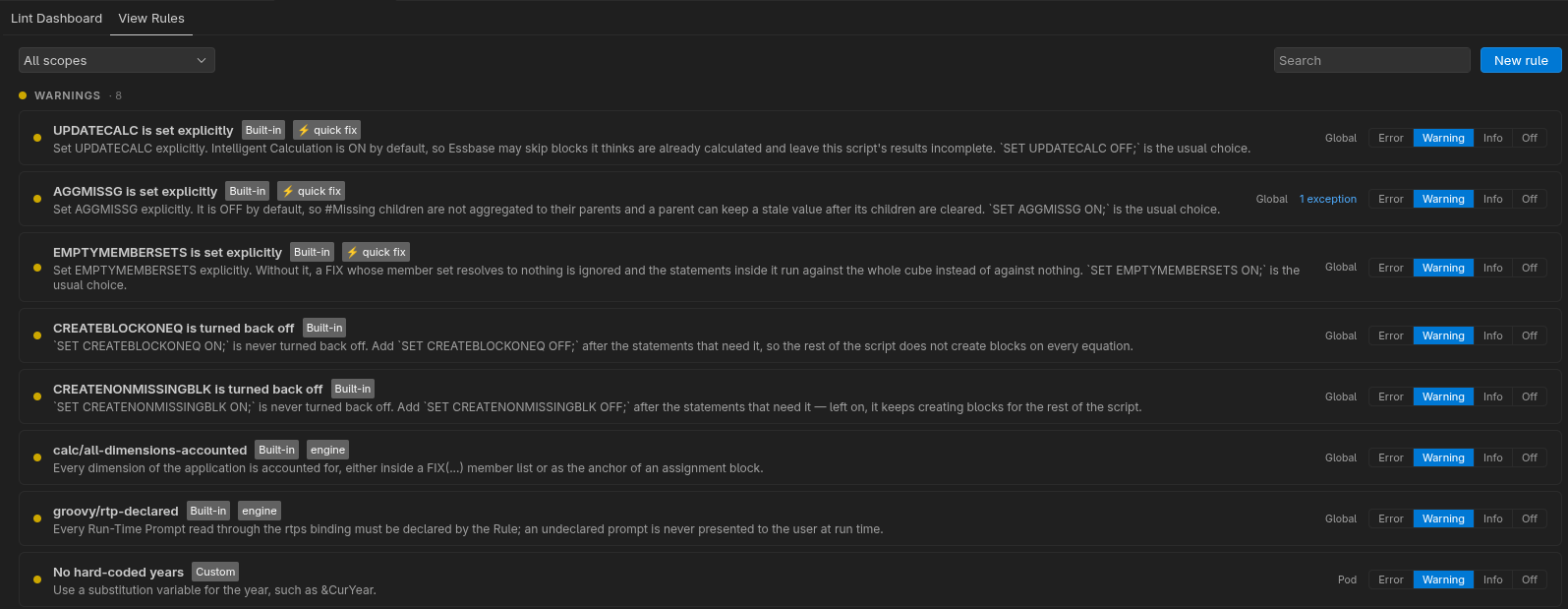
Each row shows:
- The Lint Rule’s name and what it checks. Most built-ins show a short title, such as AGGMISSG is set explicitly, rather than their id. The Default Lint Rules page lists both.
- Built-in for one that comes with EPM Workbench, or Custom for one your team wrote.
- ⚡ quick fix if its findings can be fixed in one click.
- engine if it’s a built-in check you can’t edit. You can still change its level or turn it off.
- Where its settings come from: Global, Domain, or Pod.
- How many Exceptions it has, if any.
- Its level: Error, Warning, Info, or Off.
Use the scope filter (All scopes, Global, Domain, or Pod) and Search to narrow the list.
Change a level or turn a Lint Rule off
Section titled “Change a level or turn a Lint Rule off”Click Error, Warning, Info, or Off on the row. The change applies right away and is saved for this Pod only.
To change it for every Pod, or for a whole Domain, add it to the Global or
Domain lint-rules.json instead, using the Lint Rule’s id. The id is on the
Default Lint Rules page, for example
calc/all-dimensions-accounted. This file turns that Lint Rule off:
{ "configure": { "calc/all-dimensions-accounted": "off" }}See where the settings are kept for where each file goes.
See a Lint Rule’s Exceptions
Section titled “See a Lint Rule’s Exceptions”Click a Lint Rule’s row, or its exceptions count, to open it in the form on the right. Its Exceptions are listed near the bottom, each with the file it excuses, the reason, who added it and when, and where it’s saved. Remove deletes it, and the finding comes back.
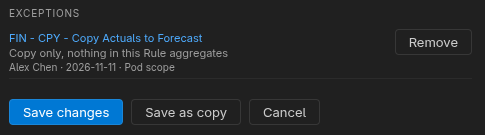
To add an Exception, use the finding in the editor. See Lint Exceptions.
Write your own Lint Rule
Section titled “Write your own Lint Rule”Here is one worth having: no hard-coded years. FIX("FY26") works this year
and quietly breaks next year. Your application already has a Substitution
Variable for the year, so the Rule should use that.
Click New rule. The form opens on the right.
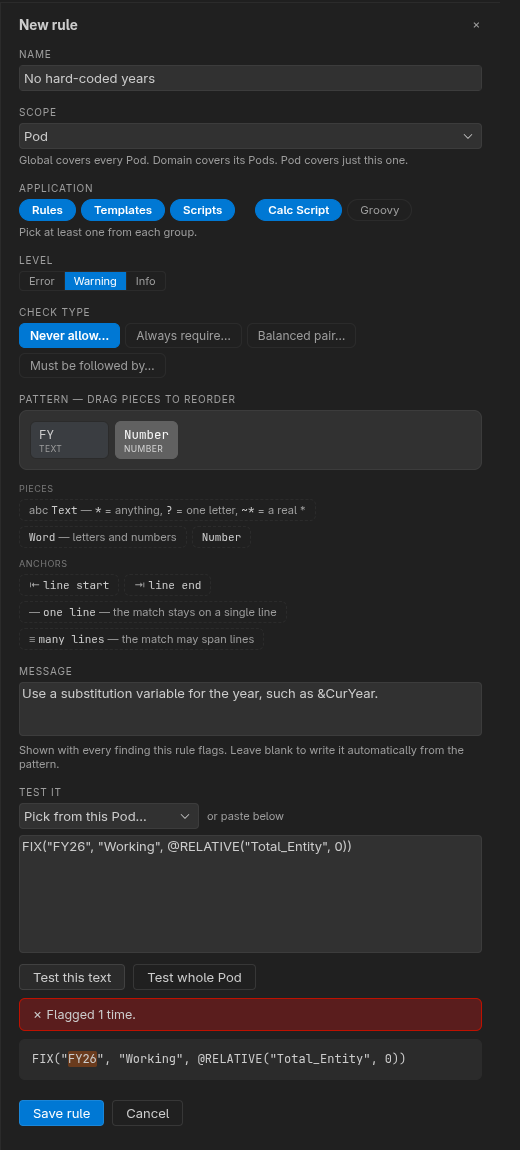
Fill it in from the top:
- Name.
No hard-coded years. This is what the list shows. - Scope. Which Pods it covers: Global for every Pod, Domain for the Pods in this Domain, or Pod for just this one. Leave it on Pod while you try it out.
- Application. Which kind of file it reads (this isn’t your EPM application): Rules, Templates, and Scripts, and Calc Script or Groovy. Pick at least one from each group. Here, keep all three and Calc Script.
- Level. Warning.
- Check type. What to look for. Choose Never allow…. The four types are explained below.
- Pattern. The text to look for, built from pieces. Type
FYin the first Text piece, then click Number under Pieces to add it. The pattern now matchesFYfollowed by any number, such asFY26. - Message. What people read in the Problems panel. Write it as advice:
Use a substitution variable for the year, such as &CurYear.If you leave it blank, the panel writes one from the pattern.
Test it
Section titled “Test it”Before you save, check that the Lint Rule catches what you mean and nothing else.
- Paste a piece of a script into the box, or choose a file from Pick from
this Pod…, and click Test this text. Here,
FIX("FY26", "Working", @RELATIVE("Total_Entity", 0))shows✗ Flagged 1 time.withFY26highlighted. - Click Test whole Pod to run it on every file in the Pod that matches
Application. It lists each match. Click one to open the file at that line. A clean result reads, for
example,
✓ Nothing flagged across 14 artifacts in Planning Prod.
If Test whole Pod flags files you didn’t expect, change the pattern and test again.
Click Save rule. The new Lint Rule shows in the list with a Custom badge, and open files are checked with it right away.
Cancel closes the form without saving.
Edit or remove your own Lint Rule
Section titled “Edit or remove your own Lint Rule”Click your Lint Rule’s row to open it in the form. Make your changes and click Save changes, or click Save as copy to keep the original and save your version as a new Lint Rule.
The panel can’t delete a Lint Rule. To remove one, delete it from the
define part of its lint-rules.json. See
Edit lint-rules.json by hand.
Check types
Section titled “Check types”| Check type | Finds a problem when | Fields |
|---|---|---|
| Never allow… | The pattern appears. Each match is a finding. | The pattern |
| Always require… | The pattern never appears in the file. The finding is at the top of the file. | The pattern |
| Balanced pair… | An opening piece has no closing piece, or the other way round, like FIX and ENDFIX. | Opens with, Must be closed by |
| Must be followed by… | The first piece appears with no second piece after it, like SET CREATEBLOCKONEQ ON; with no OFF later. | First piece, Must be followed later by |
Pattern pieces
Section titled “Pattern pieces”| Piece | Matches |
|---|---|
| Text | The text you type. In it, * means anything on the same line, ? means one letter, and ~* means a real *. |
| Word | One word of letters and numbers. |
| Number | A number. |
| line start / line end | The start or end of a line. |
| one line | Keeps the match on one line. |
| many lines | Lets the match run over several lines. |
Drag the pieces to change their order. Patterns ignore upper and lower case
and extra spaces, and never match inside comments. A pattern that starts or
ends with a letter or number only matches whole words, so FY and a number
won’t match inside a member name such as "PriorFY26Total".
Change a built-in Lint Rule
Section titled “Change a built-in Lint Rule”Click a built-in row to see how it works. Most built-ins open in the form, and you can change the pattern or message and save. Your version replaces the built-in for the Pods its scope covers. The scope starts on Global, so change it if you only want it in one Pod.
Built-ins marked engine can’t be edited. The form says so. You can still change their level or turn them off from the list.
The Lint Dashboard
Section titled “The Lint Dashboard”The Lint Dashboard tab sums up the whole Pod: how many files were checked, how many findings there are, and how many can be fixed in one click. Below that is a row for each Lint Rule that found something. Click 1 artifact (or however many) to list each finding, and click a finding to open the file at that line. Off turns that Lint Rule off for the Pod. Rescan checks the Pod again. An artifact is a Rule, Template, or Script.
Edit lint-rules.json by hand
Section titled “Edit lint-rules.json by hand”Most people never need this section. The panel saves to lint-rules.json files, and you can edit them yourself. See
where the settings are kept
for the three scopes. VS Code suggests the allowed names as you type and
explains each one when you hover over it.
A file can have three parts, all optional:
configure: a Lint Rule’s name and its level,"error","warning","info", or"off".define: your own Lint Rules.exceptions: the Lint Exceptions.
Here is a Pod file with one Lint Rule turned off, the Lint Rule from above, and one Exception:
{ "$schema": "https://www.epmworkbench.com/schemas/validation-rules.json", "configure": { "calc/all-dimensions-accounted": "off" }, "define": [ { "id": "custom/no-hard-coded-years", "kind": "forbid-pattern", "title": "No hard-coded years", "message": "Use a substitution variable for the year, such as &CurYear.", "severity": "warning", "syntax": "simple", "languages": ["esscalc"], "pattern": "FY{number}" } ], "exceptions": [ { "artifact": "FIN - CPY - Copy Actuals to Forecast", "rule": "calc/require-aggmissg-on", "reason": "Copy only, nothing in this Rule aggregates", "date": "2026-11-11", "author": "Alex Chen" } ]}The names in the file differ a little from the panel:
kindis the check type:forbid-patternis Never allow…,require-patternis Always require…,pair-balanceis Balanced pair…, andrequire-orderis Must be followed by….severityis the Level, andtitleis the Name.languagesisesscalcfor Calc Script andgroovyfor Groovy.- The
$schemaline still ends invalidation-rules.json. Leave it as it is. It lets VS Code help you as you type.
A few things only show up in the file:
"syntax": "simple"means the pattern uses the pieces above. Without it, a pattern is a regular expression, a more technical way to write patterns.docsis a web address. Clicking the Lint Rule’s name in the Problems panel opens it.examplesholds snippets the Lint Rule must catch (bad) and must leave alone (good). EPM Workbench checks them each time it reads the file. If one fails, the file counts as broken (see the warning below).- Two more check types can only be written here.
max-countlimits how many times a pattern appears, or how deeply it nests, such asFIXblocks more than two deep.namingchecks the file’s name instead of its text.